

Apple’s new MacBook Pro with PROLED XDR Display isn’t just the best display ever put in a laptop. It’s also Apple’s first-ever touchscreen in a Mac and the first time macOS has supported Touch as an input option. It’s a feature we longtime Mac users thought we’d never see, mostly because Apple has a history of saying it won’t happen.
But it has happened—and on the expensive laptop Apple sells, no less. While the MacBook Pro with PROLED XDR Display has plenty of other features to attract customers, which I will outline in my upcoming review, the touchscreen is one of the most interesting features to come to the Mac in years and is sure to be a major consideration for buyers when choosing which laptop to get.
However, macOS with Touch isn’t the same interface that you can just reach out to control with your fingers. Apple has enhanced and optimized macOS to accommodate Touch, making the overall experience satisfying. Here are my observations after spending a few days with it.
Apple did not simply take a Touch input sensor, slap it on top of the OLED, pack it all up, and ship it. For the optimal experience, the Touch sensor is incorporated into the OLED panel, just as it is with the iPad Pro. That makes it perform more like a tablet than a usual touchscreen laptop.

Touch is very responsive, with no noticeable delay between a gesture and response.
Roman Loyola/Foundry
It also means there’s no lag when touching the screen. Tap the screen, and you’ll get an instant reaction from macOS: buttons, menus, sliders, icons, the Dock, you name it. Everything reacts the instant you touch it.
My major concern about the touchscreen MacBook Pro was whether Apple would do enough (or anything) to adjust macOS’s longstanding UI elements for Touch input. Some elements in macOS need to be larger to make them easier to touch; others need to be shifted to create more space; and still others need a complete rethink. A touch UI that demands cursor-style precision means you have to concentrate to do the most mundane of tasks. That’s tiring.
Foundry
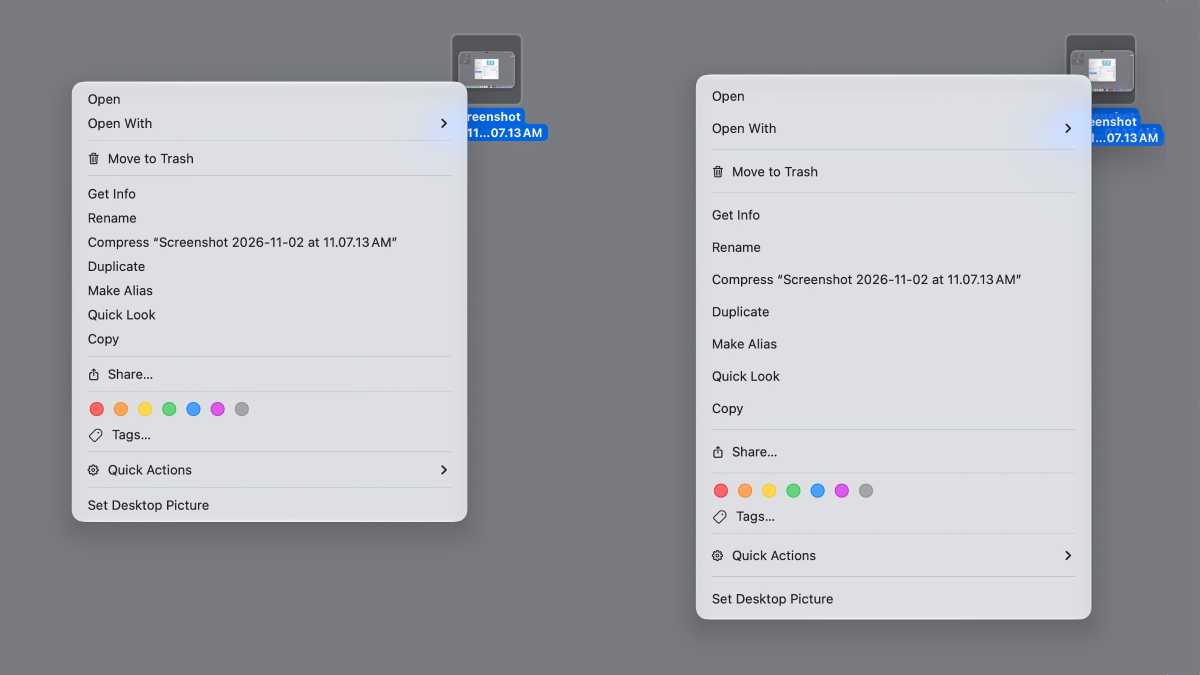
In macOS 27.2 on the new MacBook Pro, Apple has enhanced macOS to accommodate Touch. Throughout the OS, elements appear when using Touch and return to the normal view when using a mouse or trackpad. The first thing you’ll notice is the set of traffic lights that appear in the upper right corner of windows to close, minimize, or expand windows full-screen, respectively. When tapped, the red, yellow, and green buttons magnify to make the target easier to hit.
Even menu items adjust by expanding a bit to add space between the items so they’re easier to tap with your finger. Another example is checkboxes, which let you tap on the accompanying text to select as well as the box itself.
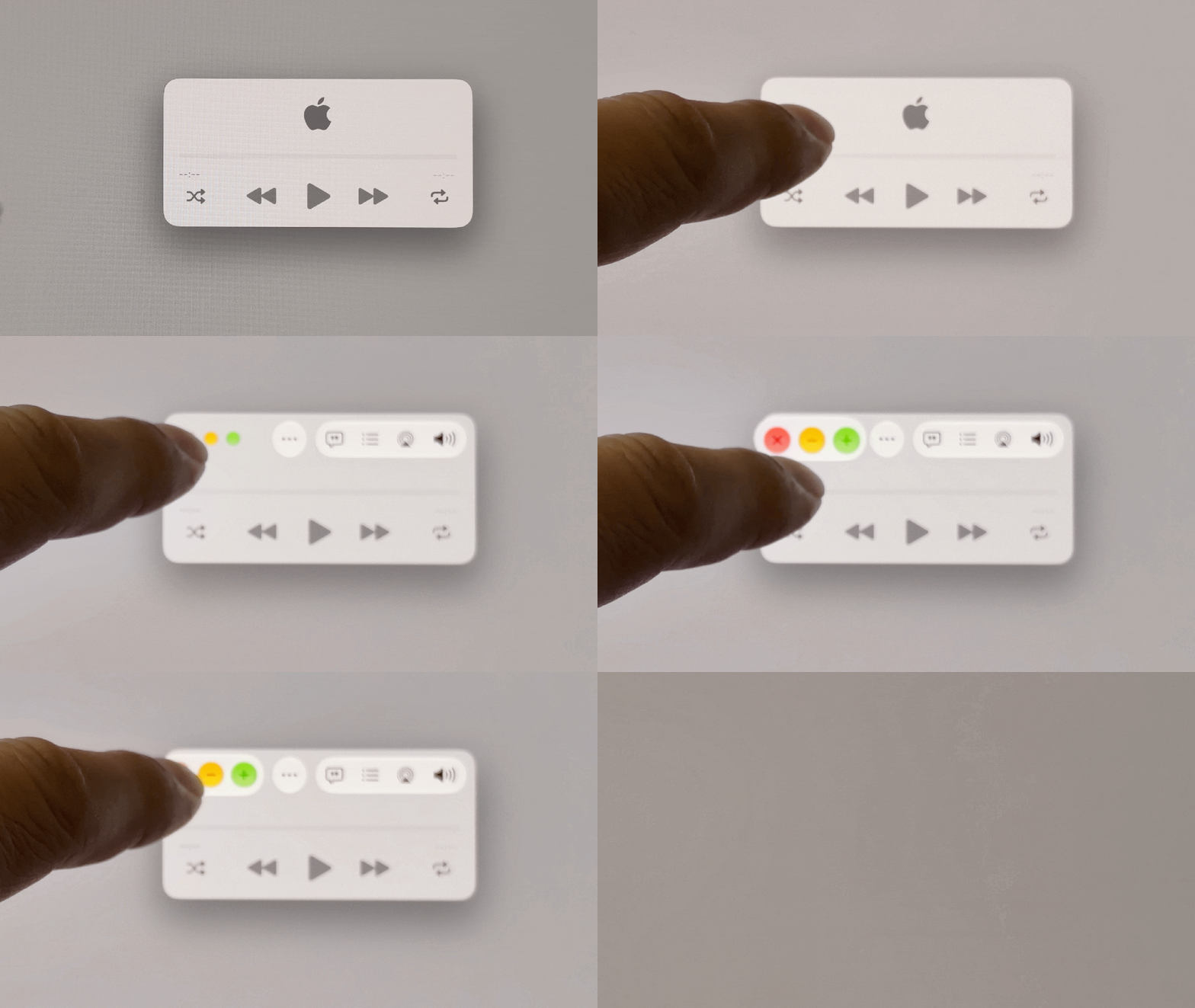
Traffic lights are enlarged to make them easier to touch.
Roman Loyola/Foundry
Almost all of the time, I can navigate through macOS just by using Touch. Apple thoughtfully considered the elements that I encountered to make them easy to touch, with one exception: video files. The ability to watch a tiny version of the video by clicking on the “Play” icon in the center of the video’s icon gets in the way of opening the file. Double-tapping to open the video file often resulted in the video playing in the icon, not actually opening the file. It’s one of the things that hasn’t been adjusted to accommodate Touch, and it needs a retool.
I also found that the mindset for Touch on macOS is separate from iOS. My experience with Apple’s touch-based UI is mostly with iOS, so I thought that macOS Touch would work similarly. But Apple decided to stick to macOS conventions, as illustrated by opening an app. In iOS, opening an app is a single tap. In macOS, a single tap selects the app, just as a single click does with a mouse or trackpad. You need to double-tap to launch the app.
Even enlarging the icons to 128-by-128 pixels didn’t make opening video files any easier.
Roman Loyola/Foundry
Multi-Touch gestures on the Mac support the same gestures that are on the trackpad and, for the most part, your iPhone and iPad. It’s all smart and effortless, especially if you already use these gestures on a trackpad: Swipe with two fingers to scroll up, down, left, or right. Use three fingers and swipe left or right to switch desktops. A four-finger swipe up opens Mission Control. A four-finger swipe down opens App Exposé, etc.
Pinch-to-zoom even works. Rotate, where you use two fingers in a rotating motion, also works, but this gesture was awkward for me to do on a standing screen. I think it’s easier to do on a trackpad or, say, an iPad that’s lying flat.
Rotate gestures are supported, but not always comfortable to do.
Roman Loyola/Foundry
Apple re-engineered the MacBook Pro’s hinge to make the screen more stable while touching it. The hinge provides enough resistance when you’re pressing relatively softly against the screen. Push hard enough, and the screen falls back, but most of the time, you’re not going to need to push that hard. In the animation above, you can see the screen wobble as I do the rotation gesture, but it’s exaggerated since I repeated the gesture several times and inadvertently pressed harder than usual.
If you tap lightly, you won’t see the display move, but most people will tap hard enough to see a wobble. However, my regular taps caused the display to shake slightly, which was noticeable but bearable. The wobble is significantly less than a regular MacBook Pro, however, and after the first few taps, I barely noticed it.
It’s a consequence of using any touchscreen: the display will end up with fingerprints smeared all over it. Like an iPad, they’re not noticeable when the display is on, but when the display goes dark or turns off, ugh. It’s gross.
Roman Loyola/Foundry
This is just a fact about touchscreens we have to live with. Even with Apple’s oleophobic coating, there just isn’t a practical way to prevent fingerprints from appearing at all. There are personal habits that can be practiced to minimize the mess: clean your hands before using the touchscreen, wipe your hands frequently, don’t eat while using a touchscreen, etc. Or you could use touch-friendly gloves, or even wear latex gloves (I tried it and it works), but that’s not practical (and it’s ridiculous). Have a microfiber cloth handy to clean the display; Apple unfortunately doesn’t include one unless you spring for the nano-texture coating, but they sell one for $9. Amazon sells a six-pack of Koala Lens Cleaning Cloths for $10.
The MacBook Pro with PROLED XDR Display’s Touch works only with fingers, not with an Apple Pencil or any third-party stylus. Other than fingerprints, using your fingers doesn’t offer nearly the same precision as using a stylus, so it’s closer to using an iPhone rather than an iPad or a graphics tablet.
Apple isn’t marketing the MacBook Pro as a Touch-first device. Rather, Touch is something users can turn to when the situation calls for it. But it’s promising nonetheless. This first version of the Mac’s Touch UI is smooth, reliable, usable, and even fun. It’s a good start, and I hope Apple invents ways to take advantage of Touch, evolving it beyond being a touch interface on top of macOS.


